> For the complete documentation index, see [llms.txt](https://en.help.firstline.cc/llms.txt). Markdown versions of documentation pages are available by appending `.md` to page URLs; this page is available as [Markdown](https://en.help.firstline.cc/feature/channels/email/gmail-bang-ding-fan-li.md).
# Gmail integration test
{% hint style="warning" %}
Although**The system supports Gmail integration as a test feature, but it is still recommended that you use a standard mail server for daily service**. This is because Gmail integration is mainly for testing purposes and may not be suitable for all production environment needs. To ensure your email delivery is more stable and reliable, choosing a formal email service is a better choice.
{% endhint %}
## 1. FIRST LINE Platform Setup
If you have already bound with your own Gmail account, but have not followed the steps of "Google Authentication Dedicated Mailbox" to set it up, don't worry. Just follow the steps below. After creating a dedicated Google authentication mailbox, go into your Gmail account and resend the verification email to this newly created dedicated mailbox.
1. To comply with Google's security requirements and ensure that verification emails can be successfully received for integration, you need to add a new one in the system**dedicated email account**for verification purposes.
It is recommended to clearly name this mailbox (for example: "Google Authentication Dedicated Mailbox") for easier identification and management later.
2. In the "Your email address" field under "Set receiving email address", enter the**system default email address**.
This setting means allowing Google to send the verification email**directly to the system default mailbox**, to complete the subsequent integration process.
3. The SMTP settings actually**do not involve sending mail functionality**, are only used to receive verification emails, so there is no need to set real, usable sending information. You can fill in any correctly formatted email address (for example:`xxxx@xxxx.com`) to complete the setup.
## 2. Gmail Service Setup
Next, let's go back to **Gmail** to configure it:
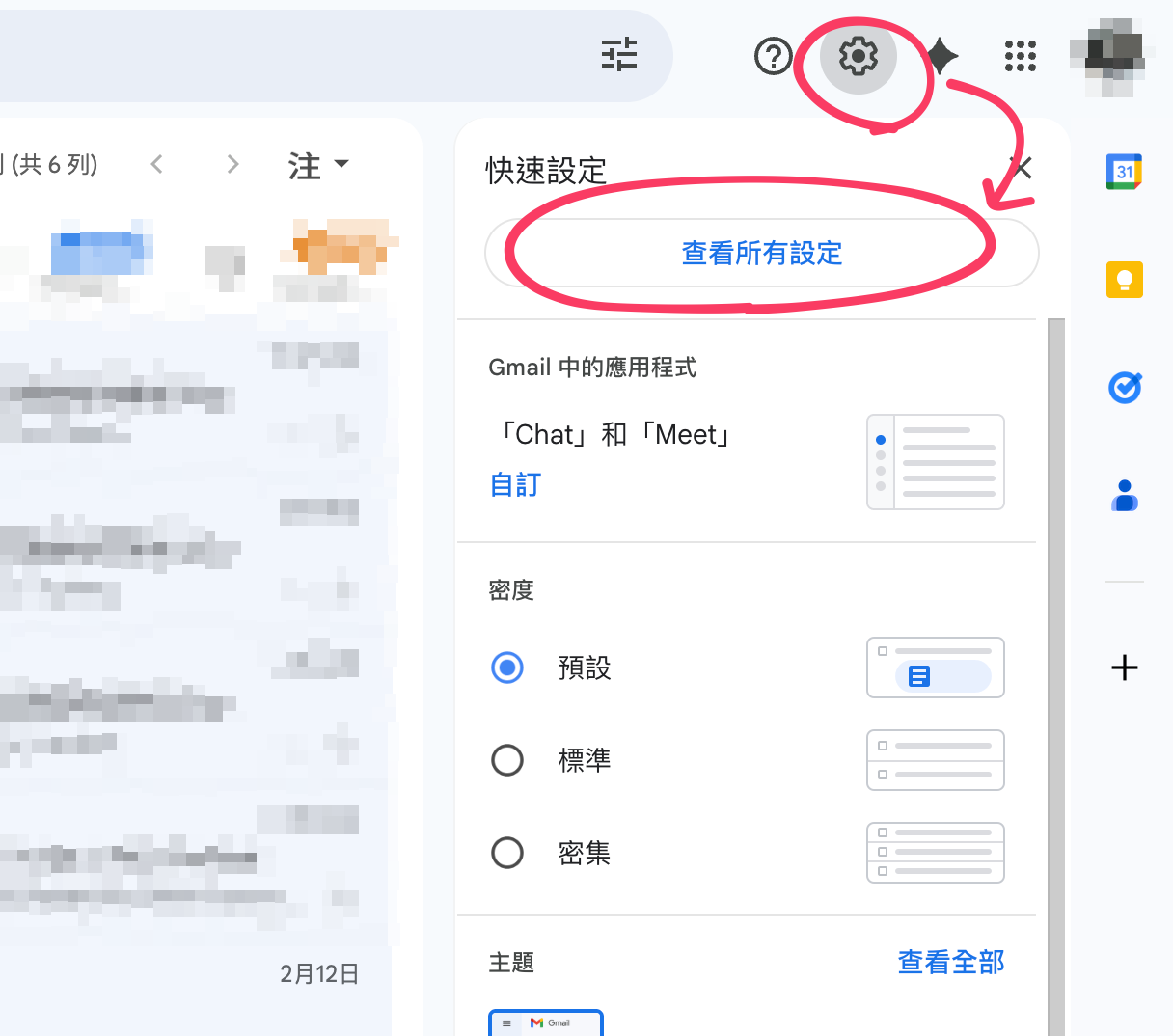
After opening Gmail, click the**gear icon (Settings)**, then click "See all settings" to enter the relevant settings page.
On the Gmail settings page, select "**Forwarding and POP/IMAP**" tab, then click "**Add a forwarding address**".
Then enter the **FIRST LINE system email address**, for example:\
`xxxx@tenant.firstline.cc`
After that, follow the prompts to verify and confirm.
After completing all the steps, the FIRST LINE system will later receive a verification email from Google. When the settings appear as shown in the image, it means the binding process is complete.
## 3. Return to the FIRST LINE platform to receive the email
After completing the Gmail-side setup, Gmail will send a verification email to the FIRST LINE system.
You can view the email in the following ways:
* Go to the "Conversation Queue" in the "Dashboard" and find the email by filtering through the pipeline
* or receive the email through the normal assignment process and then view its contents
Then follow the instructions in the email and click the verification link to complete the setup.
{% hint style="success" %}
## ✅ Google Authentication Integration Setup Checklist
**1. Create a dedicated mailbox**
* [ ] Add a "dedicated receiving account" in the system (recommended name: Google Authentication Mailbox)
**2. Set receiving address**
* [ ] Go to "Set receiving email address"
* [ ] Fill in "Your email address" with:**the email provided by FIRST LINE**
**3. SMTP can be skipped**
* [ ] Fill in SMTP arbitrarily (as long as the format is correct, e.g. )
* [ ] It does not affect functionality (because it won't be used to send mail)
**4. Set up forwarding in Gmail**
* [ ] Open Gmail → top right "Settings (gear)" → "See all settings"
* [ ] Enter "Forwarding and POP/IMAP"
* [ ] Click "Add a forwarding address"
* [ ] Enter: FIRST LINE system email (for example )
**5. Complete Gmail forwarding address**
* [ ] Complete the forwarding address according to Gmail's instructions
**6. Receive the verification email in FIRST LINE**
* [ ] Go to "Dashboard" → "Conversation Queue"
* [ ] Find the Google verification email
* [ ] Open the email and click the verification link
{% endhint %}
***
## :question:FAQ
### Unable to send mail via SMTP
When testing Gmail SMTP sending, if the error is **"Failed to authenticate on SMTP server with username “” using 3 possible authenticators. Authenticator LOGIN returned Swift\_TransportException".**\
\
Please ask the mailbox administrator to help rule out the following possible causes:
1. This Google mailbox has already exceeded the limit of three application authorizations.
2. Because your account uses**two-step verification**, you must**create an app-specific password**to sign in with the application.
### How to enable app passwords
If you find that sending mail via Gmail SMTP fails, the possible reason is that as of May 2022, Google has fully switched to the stricter "App Passwords" feature, and you can no longer use your own Google login password to send mail.
1. **Enter the Google Security Settings page**:
* Open the browser and go to [Google Security Settings](https://myaccount.google.com/intro/security) page.
* In the "Signing in to Google" section, click "2-Step Verification".
2. **Enable 2-Step Verification**:
* Click "Get started" and follow the prompts to verify your identity (you may need to enter your Google password).
* Enter your phone number and choose how to receive the verification code (text message or voice call).
* Enter the received verification code to complete the 2-Step Verification setup.
3. **Generate an app password**:
* Return to [Google Security Settings](https://myaccount.google.com/intro/security) the page, find the "App passwords" option and click it.
* In the "Select app" dropdown menu, choose "Other (Custom name)".
* Enter "FIRST LINE system", then click "Generate".
* The system will generate an app password; please record it carefully.
4. **Set up SMTP for the FIRST LINE system**:
* Log in to your FIRST LINE system administration interface and go to the email settings page.
* Enter the following SMTP configuration information:
* **Server location**:smtp.gmail.com
* **Port**:587
* **Account**:\[your Gmail account]
* **Password**:\[the app password just obtained]
* **Encryption method**: TLS
* After saving the settings, try sending a test email to confirm whether the setup was successful.




 2. **Enable 2-Step Verification**:
* Click "Get started" and follow the prompts to verify your identity (you may need to enter your Google password).
* Enter your phone number and choose how to receive the verification code (text message or voice call).
* Enter the received verification code to complete the 2-Step Verification setup.
2. **Enable 2-Step Verification**:
* Click "Get started" and follow the prompts to verify your identity (you may need to enter your Google password).
* Enter your phone number and choose how to receive the verification code (text message or voice call).
* Enter the received verification code to complete the 2-Step Verification setup.
 3. **Generate an app password**:
* Return to [Google Security Settings](https://myaccount.google.com/intro/security) the page, find the "App passwords" option and click it.
* In the "Select app" dropdown menu, choose "Other (Custom name)".
* Enter "FIRST LINE system", then click "Generate".
* The system will generate an app password; please record it carefully.
4. **Set up SMTP for the FIRST LINE system**:
* Log in to your FIRST LINE system administration interface and go to the email settings page.
* Enter the following SMTP configuration information:
* **Server location**:smtp.gmail.com
* **Port**:587
* **Account**:\[your Gmail account]
* **Password**:\[the app password just obtained]
* **Encryption method**: TLS
* After saving the settings, try sending a test email to confirm whether the setup was successful.
3. **Generate an app password**:
* Return to [Google Security Settings](https://myaccount.google.com/intro/security) the page, find the "App passwords" option and click it.
* In the "Select app" dropdown menu, choose "Other (Custom name)".
* Enter "FIRST LINE system", then click "Generate".
* The system will generate an app password; please record it carefully.
4. **Set up SMTP for the FIRST LINE system**:
* Log in to your FIRST LINE system administration interface and go to the email settings page.
* Enter the following SMTP configuration information:
* **Server location**:smtp.gmail.com
* **Port**:587
* **Account**:\[your Gmail account]
* **Password**:\[the app password just obtained]
* **Encryption method**: TLS
* After saving the settings, try sending a test email to confirm whether the setup was successful.