> For the complete documentation index, see [llms.txt](https://en.help.firstline.cc/llms.txt). Markdown versions of documentation pages are available by appending `.md` to page URLs; this page is available as [Markdown](https://en.help.firstline.cc/feature/channels/line.md).
# LINE Official Account
## Related settings information
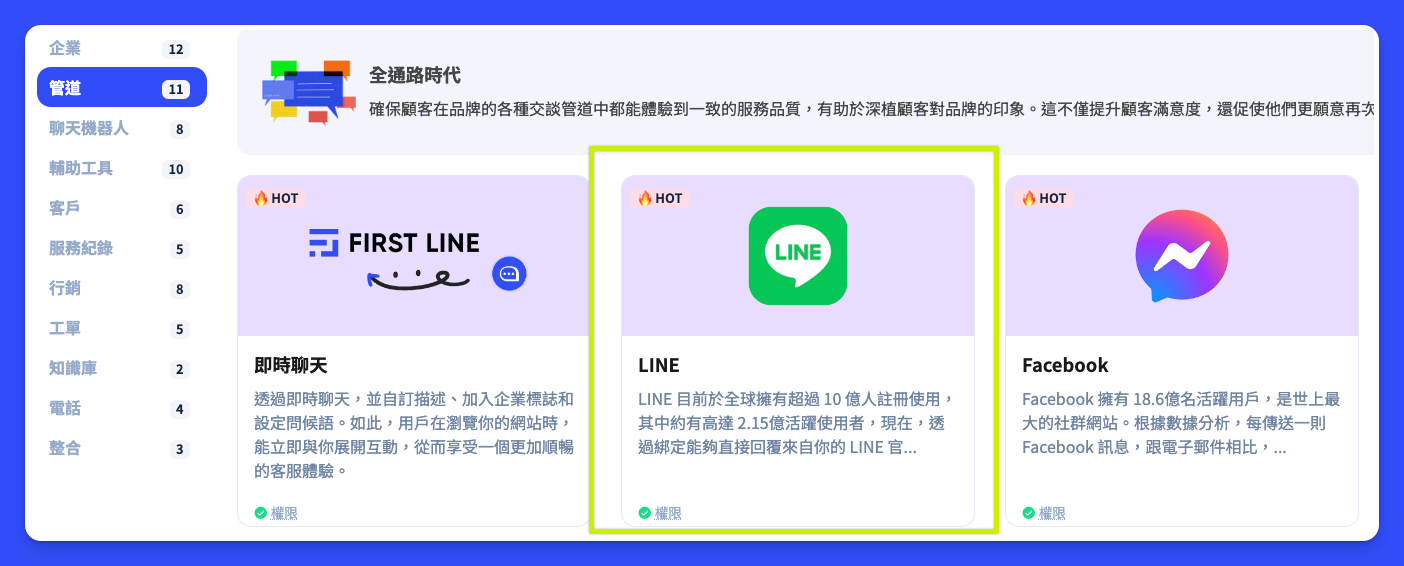
You can go to the list by clicking the "LINE Official Account" button under the "Channel" item in the left menu.
At the top right of the list, "Add LINE Official Account" lets you create a channel with "Add". Each existing record also has an "Edit" button; clicking it will take you to the edit page.
### Add LINE Official Account Information
After entering the main editing interface, the fields for general information settings are as follows:
#### General information
| Required | Field | Content |
| ---------------------------------------------------------------------------- | --------------------------- | ------------------------------------------------------------------------- |
|
| Name | Enter an easy-to-recognize name; it cannot be the same as any other name. |
|
| Description | Fill in a description to make management and review easier. |
|
| Associated channel category |
Select the name of an existing channel category.
|
## Start connecting the LINE Official Account
### Open the API item
Go to [**LINE Developer**](https://developers.line.me/console/), enter your LINE Official Account's "**Messaging API**" page, and confirm**enabled** **Messaging API**, you will see items including "**REPLY\_MESSAGE**" and "**PUSH\_MESSAGE**" two items.
### Paste related information (Channel secret & Channel access token)
1. Go to [**LINE Developer**](https://developers.line.me/console/) platform.
2. In **Basic settings** Find "Channel secret" at the bottom of the page.
3. In **Messaging API** Find "Channel access token" at the bottom of the page.
4. Copy these two strings separately into the corresponding fields in the system.
In Basic settings Find "Channel secret" at the bottom of the page.
In Messaging API Find "Channel access token" at the bottom of the page.
Copy these two strings separately into the corresponding fields in the system.
### Paste the Webhook URL
1. **Copy the Webhook URL**:Copy the "Webhook URL" generated at the bottom of the system page.
2. **Set the Webhook URL**:
* Go to the **Messaging API** page on the LINE Developer platform.
* Find the "Webhook URL" field and click "Edit".
* Paste the copied URL into the field after `https://` .
* Click "Update" to save the changes.
3. **Enable Webhooks**:
* In **Messaging API** On the page, find the "Use webhooks" field.
* Edit it to the "Enabled" state.
This completes the LINE Official Account binding setup.
Copy the "Webhook URL" generated at the bottom of the system page.
Set the Webhook URL
### Adjust response mode and disable group functionality
Be sure to [**LINE Business**](https://manager.line.biz/) **in the management interface**, adjust the required chat method. Here we recommend turning off auto-reply in the LINE backend to avoid conflicts with the system's auto-reply.
Due to the nature of chatbot workflows, if it is added to a group, when multiple members chat at the same time, it can easily trigger unnecessary messages. Even if methods such as tags are used, this issue is still difficult to solve effectively.
Therefore, please adjust the following settings to **"Disable"**:
* **Allow bot to join group chats**
* **Auto-reply messages**
Please click the **"Edit"** on the right to make configuration changes.
{% hint style="warning" %}
If you have already adjusted the settings in the LINE Official Account management backend, but the update is still not visible on the Messaging API page in LINE Developers, this is because the display in LINE Developers is not synchronized in real time. Please wait a while; the system will update automatically and no additional action is required.
{% endhint %}
## Troubleshooting
### When is a LINE contact created?
When a customer has the following interactions with a LINE Official Account, FIRST LINE will check whether there is already that customer's LINE contact data; if not, it will create one:
* **Add as friend**:When the customer adds the LINE Official Account as a friend.
* **Send message**:When the customer sends a message to the LINE Official Account.
* **Click button or menu**:When the customer clicks a button or menu that triggers a Postback.
* **Remove friend**:If the system originally does not have this LINE contact record, it may also be created when a friend removal event is received.
In short, as long as a customer has the above interactions with the LINE Official Account, the system may create LINE contact data. In addition, some LIFF page interactions may also create LINE contact data.
### Common reasons for sending failure
#### *You have reached your monthly limit*.
This message means your **LINE free message quota has been used up**, and messages can no longer be sent. To resume sending, please upgrade your LINE Official Account plan, or purchase additional message quota.
Also, please note the following:
* **The usage data in the LINE backend is not updated in real time**, and is usually updated the next morning. Therefore, even if the backend shows that the limit has not been reached, the monthly quota may actually already be used up.
* If you have already purchased **Additional Message Limit (extra message quota)**, the LINE system may need a few hours to complete the setup. During this period, the available quota and usage status in the LINE backend may not update immediately, which is normal.
It is recommended that after completing the purchase, you wait a while and then check the LINE backend quota status again.
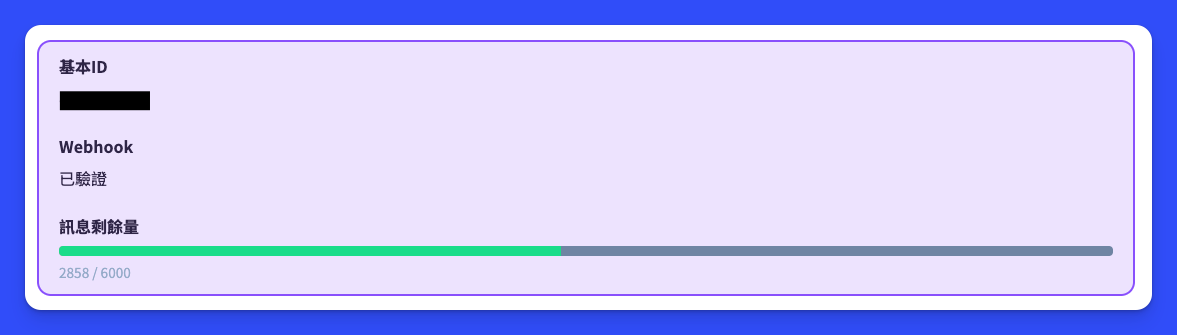
You can view the remaining balance of a single LINE Official Account through system management
#### *Authentication failed*. *confirm that the access token in the authorization header is valid*
The access token integrated with your system may be incorrect. This may be due to an input error, or because another administrator made changes in the LINE backend, causing it to become invalid or expired. In this case, please go to LINE Developer [**https://developers.line.biz**](https://developers.line.biz/console/), and in the corresponding Messaging API Channel generate a new access token, then paste it back into the system.
### Customer messages keep being received repeatedly
First, you may need to go to , and in the "Messaging API" tab, check whether Webhook redelivery is enabled. If it is, you can try temporarily disabling this item. Although the original purpose of Webhook redelivery is to resend messages when a third-party system has problems, ensuring information is not lost, based on our actual test results, when LINE itself has abnormalities or encounters certain special situations, it may continuously and repeatedly send the same message to the third-party system, which directly causes a mismatch between the script and the received message content.
### Reissue Channel access token
In some cases, such as for debugging or to avoid the impact of older third-party systems, if you need to regenerate the Access Token, you can go to [**https://developers.line.biz**](https://developers.line.biz/), then enter the "Messaging API" tab, click the "Reissue" button to regenerate the Channel Access Token. Then copy the regenerated Access Token and paste it back into your system for use.
In this way, you can use the new Access Token to perform channel integration operations.
### Can I reply directly through the LINE backend?
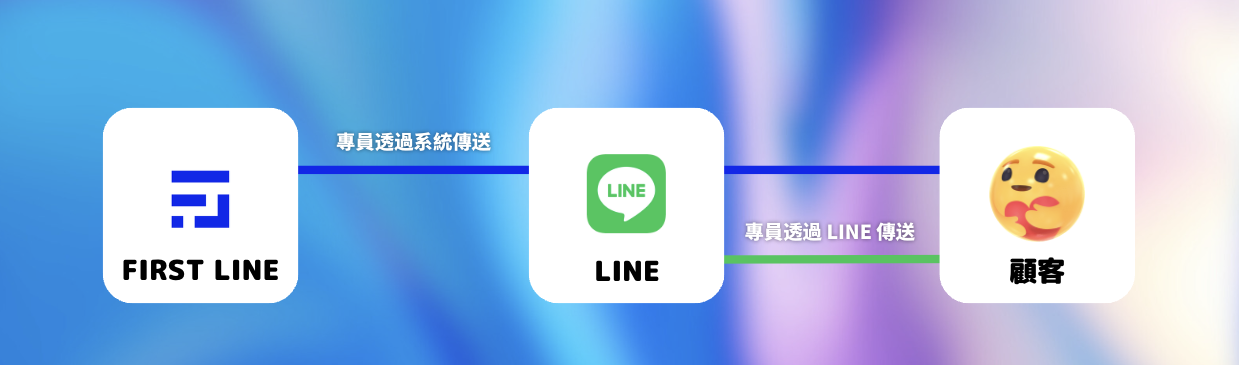
Official LINE added a native backend setting at the end of 2022. You can choose to enable the reply function while allowing chat and Webhook to coexist. This means that after integrating a third-party system, you can still view messages and reply through LINE's native backend.
However, please note that if you reply directly in LINE's native backend rather than through the FIRST LINE system, that reply message will not be displayed in the FIRST LINE system. In addition, if the customer is in a script flow, replying in the native backend cannot drive the flow to continue.
Therefore, to ensure message consistency and smooth workflow progression, it is recommended to reply and interact in the FIRST LINE system. This ensures that message records and management are all in the same system, and the configured script flow can be triggered correctly.
 Related settings information
You can go to the list by clicking the "LINE Official Account" button under the "Channel" item in the left menu.
At the top right of the list, "Add LINE Official Account" lets you create a channel with "Add". Each existing record also has an "Edit" button; clicking it will take you to the edit page.
Related settings information
You can go to the list by clicking the "LINE Official Account" button under the "Channel" item in the left menu.
At the top right of the list, "Add LINE Official Account" lets you create a channel with "Add". Each existing record also has an "Edit" button; clicking it will take you to the edit page.