> For the complete documentation index, see [llms.txt](https://en.help.firstline.cc/llms.txt). Markdown versions of documentation pages are available by appending `.md` to page URLs; this page is available as [Markdown](https://en.help.firstline.cc/feature/marketing/broadcast.md).
# Segmented messages
## Overview
Through the "Segmented Message" feature, you can precisely find the target audience you want to reach. By using various filtering conditions, such as "birth month" or "gender," you can ensure the content you send truly matches the recipients' needs and interests.
To enter the management area for "Segmented Message," first click the FIRST LINE menu on the left, then select "Channels." Next, click "Segmented Message" to view the full message list. Here, you can easily check important information such as "send time" and "send status," making message management more convenient.
## Set audience conditions
On the page, you can set your desired filtering conditions based on various categories, ensuring you find the most suitable customer group.
Just click a filter category to see the corresponding detailed filter options, such as "tags" or "gender." This way, you can easily set audience filters according to your needs, ensuring your message reaches the target customers precisely.
#### Audience Prediction Analysis
After setting the audience conditions, the system will analyze in real time and display data and charts such as "estimated target customer count," "age range," and "gender distribution" based on your filters, making it easier for you to quickly identify the audience group.
**Estimated target customer count**: This function calculates in real time the number of customers you are expected to reach after setting audience conditions. For example, if you select "female" and "18-25 years old," the system will estimate the number of customers who meet these conditions.
**Age range**: The system will analyze which age range all the customers you selected fall into. This way, you can understand which age group your target audience is mainly concentrated in.
**Gender distribution**: This is a simple pie chart that shows what percentage of the selected customers are male and what percentage are female.
These data and charts are generated in real time, meaning they update instantly whenever the filter conditions are changed. This design not only helps you understand the characteristics of the target audience more quickly, but also ensures your message is more precisely targeted to the corresponding audience.
## Select sending channels
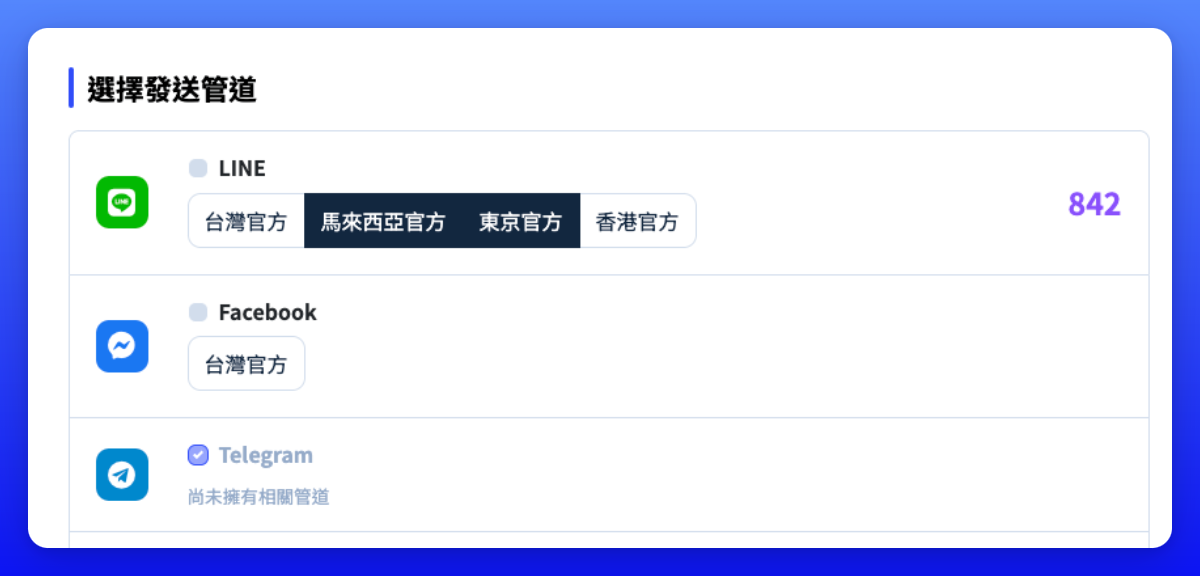
Based on your business needs, you can choose the sending channels you want to use, whether LINE, Messenger, or other platforms. But please note the following
1. The number of channels selected will affect the time required to complete message delivery.
2. In addition,**additional fees may be incurred depending on the sending channel**. For example, LINE provides a daily free sending limit; exceeding that limit requires additional payment. SMS sending also incurs related handling fees. Therefore, before sending messages, it is recommended that you carefully read the fee descriptions for each channel to ensure proper use of resources.
3. On the interface,**the estimated sending quantity will be displayed, which indicates the number of customers for that channel who meet the current conditions**. However, please note that the actual sending quantity may differ from the estimated quantity. This is because customer data may change during the sending process, such as status updates or other condition changes. Therefore, the final count should be based on the number of messages that were truly sent successfully.
## Set segmented message
### Content and sending settings
| | | |
| ---------------------------------------------------------------------------- | --------------------------------- | ------------------------------------------------------------------------------------------------------------------------------------------------------------------------------------------------------------------------------------------------------------------------------------------------------------------------------------------------------------------------------------------------------------------------------------------------------------------------------------------------------------------------------------------------------------------------------------------------------------------------------------------------------------------------------------------------------------------------------------------------------------------------------------------------------------------------------------------------------------------------------------------------------------------------------------------------------------------------------------------------------------------------------------------------------------------------------------------------------------------ |
|
| Name | Enter an easily recognizable name for this segmented message; it cannot be the same as any other name. |
| | Notes | Fill in notes for easier viewing by the administrator or yourself. |
| | Sending time | You can choose to send it "manually" or set a "specific time" for automatic sending. |
|
| Maximum sending limit per channel | Once a single channel account reaches this set quantity, message sending will stop. |
| | Facebook message type |
Please follow Facebook guidelines when choosing a tag type; violating the terms of use may result in restrictions on the fan page's messaging feature.
Standard message (24-hour policy): Within 24 hours after the user sends a message, you can interact with them at any time. After this period, you need a specific message tag to interact with them again.
Order update: After a customer completes an order, you can send order-related notifications such as item arrival, order status updates, changes to shipping information, or cashback notifications.
Account update: If there are major updates or alerts related to the account, such as suspicious account activity or changes in application status, you can notify them through the "account notification" tag.
Event notification: For Messenger users who have already purchased tickets or registered, you can send various reminders and notifications about the event to ensure they do not miss any important information.
|
### Edit outreach message
At the bottom of the page, enter the main editing interface, which displays the fields that make up the outreach message settings. The field list is as follows:
#### Outreach message settings
Required
Name
Description
Title
The subject line received by the customer; for social media channels, it will be placed on the first line.
Send content
When entering send content, please note that if it is sent through social media channels, the system will automatically remove HTML formatting. If you plan to send through multiple channels, it is recommended to keep the content brief and clear.
{% hint style="info" %}
To accommodate multi-channel integration (for example, some channels do not support direct images or other types), if you choose a messaging channel such as LINE, the system will replace HTML with plain text message format, which prevents images from being sent directly. However,**you can provide related images or resources to customers via hyperlinks,**and use the "tracking link" in the system's marketing toolkit to further analyze open rates.
The FIRST LINE team will also continue to update and improve, and we plan to provide a wider variety of message formats in the future to meet customers' different needs and expectations.
{% endhint %}
## Example
### Special offers for specific birthday celebrants
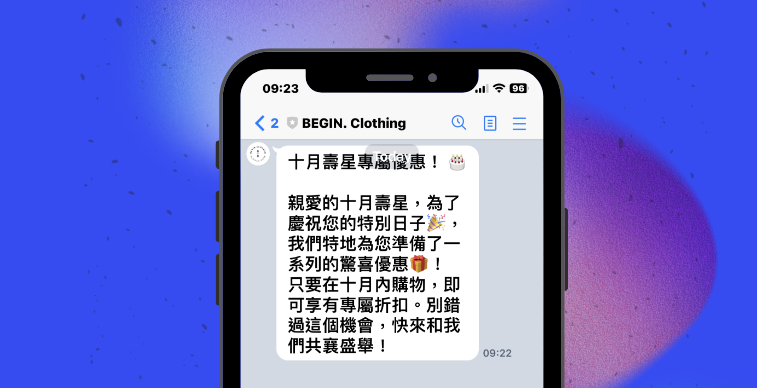
For example, you can filter out customers whose birthdays are in October, then send a specific message for October promotions. Example as follows:
* Title: Exclusive offers for October birthday celebrants!
* Body: Dear October birthday celebrant, to celebrate your special day, we have specially prepared a series of surprise offers for you! Just shop in October to enjoy exclusive discounts. Don’t miss this opportunity—come join us in celebrating!
### For recently serviced customers
* Title: Add a touch of warmth to your home—home decor deals are here!
* Body: Dear customer, home is a haven for the heart, and making it warmer and more comfortable is our mission! Now, as long as you have the home decor tag, you can enjoy our special offers! From candles to paintings, we offer home decor in a variety of styles to refresh your home! Buy now and enjoy the discount! Event link below: .
### Campaign for customers with a specific tag
For example, you can filter customers who have the "jeans" tag, then send exclusive messages for jean promotion campaigns. Example as follows:
* Title: Exclusive jeans discounts are here!
* Body: Dear customer, we know you love jeans! Now, just buy any pair of jeans to enjoy a special discount! This is a deal prepared especially for you—don’t miss this great shopping opportunity!