> For the complete documentation index, see [llms.txt](https://en.help.firstline.cc/llms.txt). Markdown versions of documentation pages are available by appending `.md` to page URLs; this page is available as [Markdown](https://en.help.firstline.cc/feature/utils/message-template.md).
# Message templates
{% hint style="info" %}
**Q3 2026 Feature Adjustments**
The use of the message template “shortcut” has been adjusted. In the new version, you need to first enter the message input box `/`, then enter the template shortcut or keyword, for example `/opening`。
If your FIRST LINE has not yet applied this version, the actual operation may be slightly different from the instructions on this page.
{% endhint %}
## Add Template
In FIRST LINE, you can pre-create commonly used message content, allowing agents to quickly apply it when replying to customers.
First, select “System” from the left menu, then click “Message Templates” under “Accessibility” to enter the template management list. Here, you can view all existing templates, and you can also click “Add Template” on the right side of the list to create a new message template.
If you need to modify an existing template, click “Edit” next to the template to make adjustments.
## Edit Template
After entering the template editing page, you can set the template name, description, and the actual message content to be applied.
#### Basic Settings
| Required | Field | Description |
| -------- | ------------- | --------------------------------------------------------------------------------------------- |
| ✓ | Template Name | Please give the template an easily recognizable name. |
| | Description | You can add the template's purpose to help agents quickly understand the applicable scenario. |
#### Template Content
| Field | Description |
| -------- | -------------------------------------------------------------------------------------------------------------------------------------- |
| Shortcut | Set the shortcut text for this template. Agents can enter `/` afterwards, then enter the shortcut to quickly search for this template. |
| Message | Please write the default template message. Hash values can be used. |
For example, set the shortcut to `opening`, and then you can enter `/opening`to quickly find the corresponding message template.
## Use Message Templates
After completing the template settings and saving, when conversing with customers, you can apply message templates in the following ways.
### Choose from the message menu
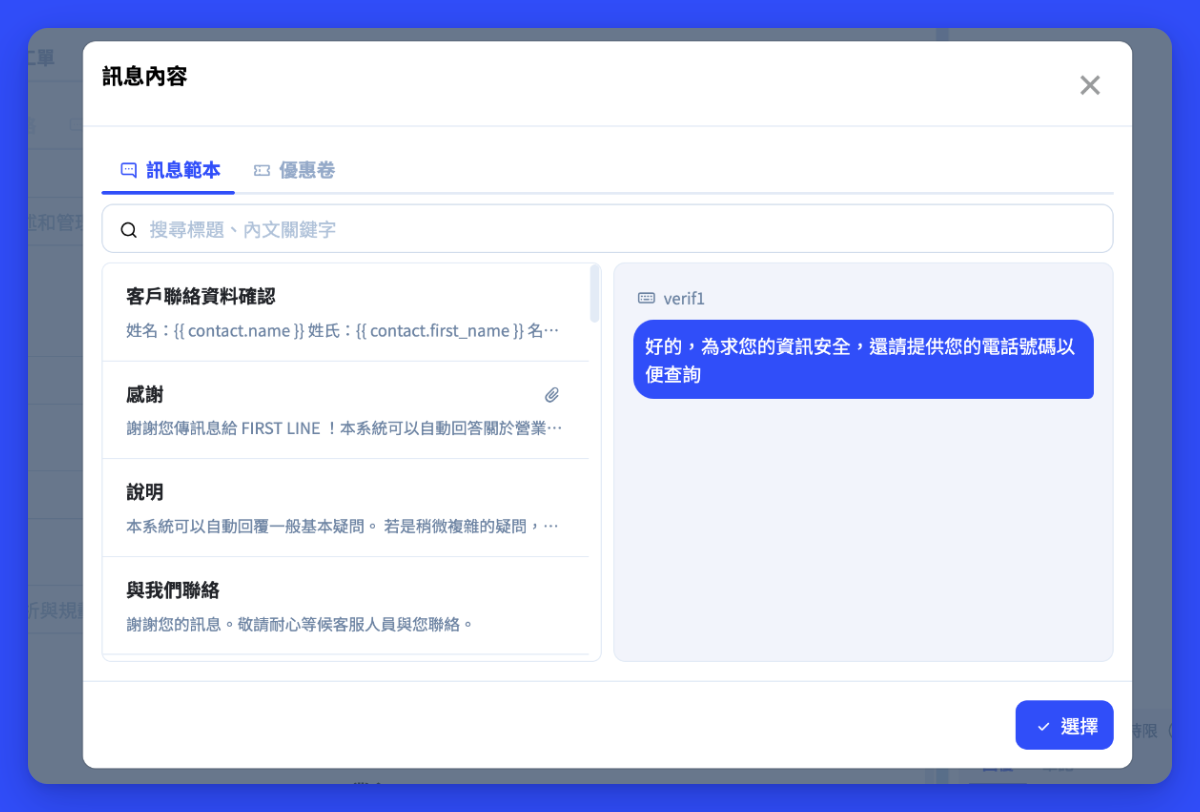
Click the “Message Menu” in the lower-right corner of the conversation window, and the system will display the list of created templates. After selecting the needed template, the content will be inserted directly into the current text input box, and you can still edit it further before sending.
### Use `/` Quickly Search Templates
If you already know which template you want to use, you can search directly via keyboard shortcuts.
1. Enter `/`in the message input box, and the system will display the text templates currently available.
2. Continue entering the template shortcut or keyword, for example `/opening`, and the system will filter the matching templates according to the entered content.
3. Use the Keyboard `↑`,`↓` to select the needed template, or you can click with the mouse to select it directly.
4. Press `Enter` to apply the template. After selection, the template content will be inserted into the message input box; confirm or adjust the content before sending.
{% hint style="info" %}
Currently `/` Quick search only supports text-type message templates.
{% endhint %}
## Why do you need to enter `/`first?
The new version uses `/` as the shortcut entry for message templates, making it clearer to distinguish between “normal text input” and “searching templates”.
This adjustment also brings several operational improvements:
* **Smoother operation:** After searching for a template, you can directly use `↑`,`↓` and `Enter` to complete the selection, reducing the need to switch back and forth between keyboard and mouse.
* **Reduces input interference:** Enter `/` before starting to search templates, so template prompts won't keep appearing during normal typing.
* **Preparing for more shortcut features:** In the future, the input box will support more functions, such as `@` mentions. Distinguishing different operations with different symbols can reduce conflicts between features and make it easier to understand which function is currently being used.
If you often use fixed templates, it is recommended to set short, easy-to-remember shortcuts for frequently used templates, such as `opening`,`refund` or `closing`, so you can `/opening`,`/refund` or `/closing` quickly search and apply.