> For the complete documentation index, see [llms.txt](https://en.help.firstline.cc/llms.txt). Markdown versions of documentation pages are available by appending `.md` to page URLs; this page is available as [Markdown](https://en.help.firstline.cc/feature/marketing/broadcast/automated-campaigns.md).
# Automated campaigns
## What are automated ads?
Audience message campaigns of the automation type can automatically send messages based on specific user events or fixed frequencies; they are an ideal tool for customer engagement.
For example, you can set up a “recovery” campaign that automatically offers discount coupons or delayed-response messages when a customer unsubscribes for some reason.
Automation campaigns can be used to streamline workflows and proactively contact specific customers when custom events occur on your website, service, or app.
## How to set up?
**Create a new automation campaign**
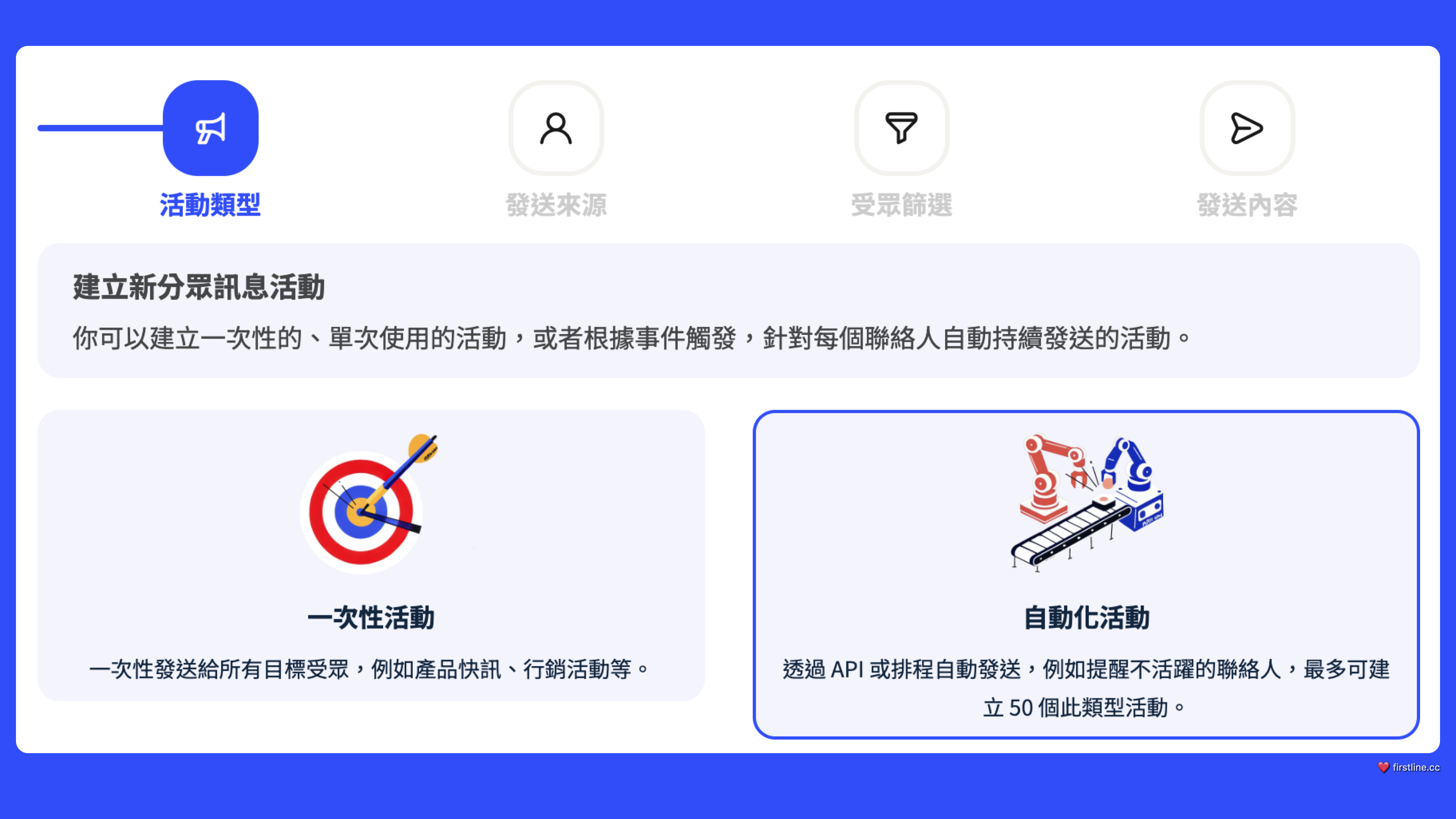
First, you need to create a new automation campaign. Go to the “Marketing” category under “Apps” and find “Audience Message Campaigns.” Then click the add button at the top of the page; an interactive window will appear prompting you to choose the campaign type. Please select “Automation Campaign.”
**Set data source and filter conditions**
Next, you can choose the data source as “Customers” or “Contacts” and set filter conditions just as you would for a “one-time campaign.” Although filter conditions are not required, setting filters is helpful if you want to ensure the campaign is not sent to users who should not receive it.
**Automation campaign feature settings**
Unlike a “one-time campaign,” an “automation campaign” can be triggered via API and can also configure the following features:
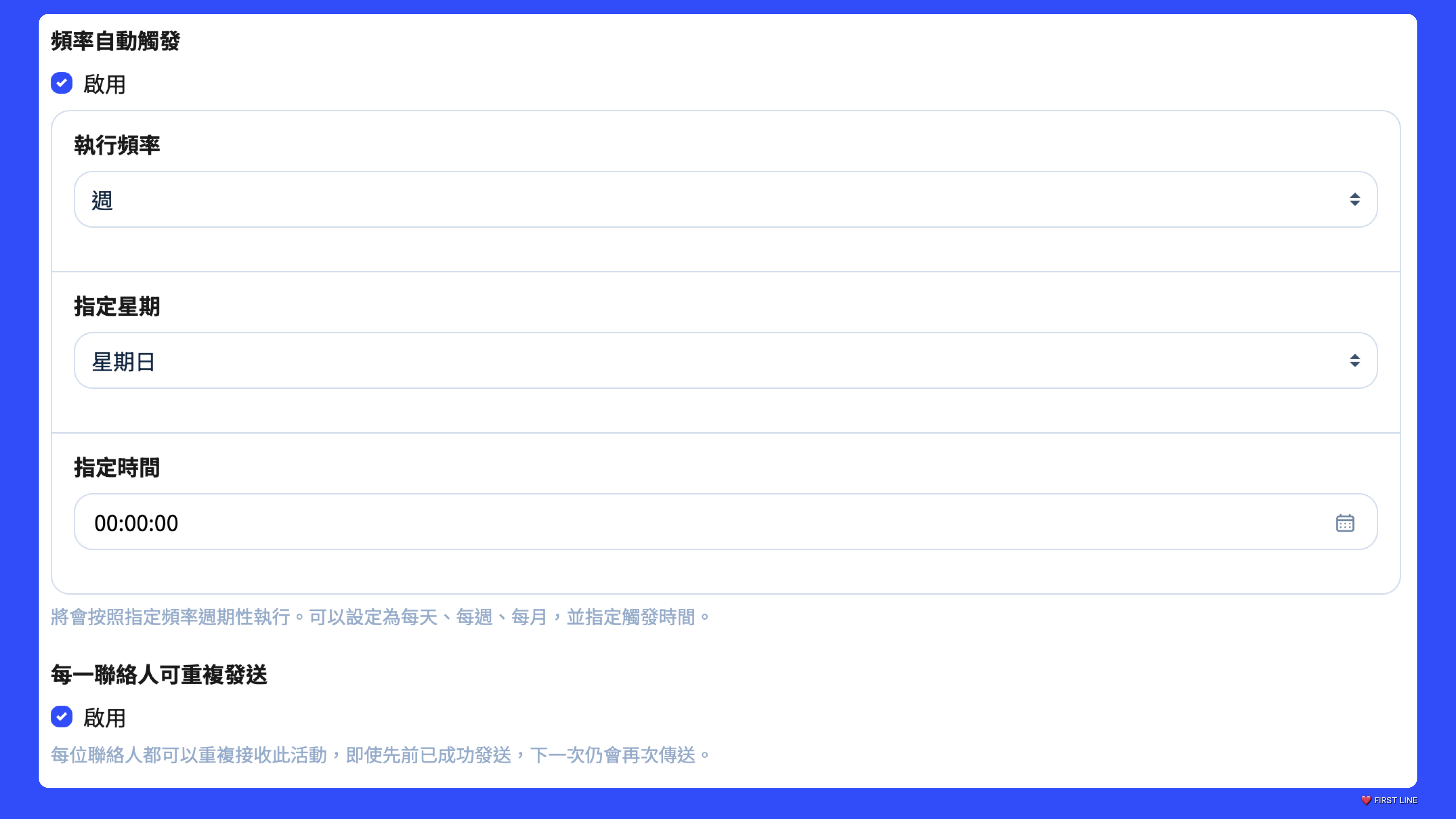
1. **Frequency automatic triggering**: Executes periodically according to the specified frequency and can be set to daily, weekly, or monthly, with a specific trigger time designated.
2. **Each contact can be sent repeatedly**: Each contact can receive this campaign repeatedly; even if it was previously sent successfully, it will be sent again next time.
3. **Delayed sending**: After the campaign is triggered, it will wait the specified number of minutes before sending.
## How to trigger via API?
You can trigger campaigns via API to achieve more granular targeting. For example, when a customer unsubscribes, you can trigger a specified recovery campaign via API and pass the membership number `membership_no` to specify a single member, thereby sending the recovery message.
The API format is as follows:
```javascript
POST api/v1/direct-ad-schedule/{id}/trigger
```
Parameters (conditions) can be appended directly to the URL, for example:
```javascript
api/v1/direct-ad-schedule/{id}/trigger?membership_no=A0001
```
indicates filtering for customers with membership number A0001, and the conditions you can pass will vary depending on the chosen data source; please refer to the existing filter conditions for “Customers” or “Contacts” when passing them.