> For the complete documentation index, see [llms.txt](https://en.help.firstline.cc/llms.txt). Markdown versions of documentation pages are available by appending `.md` to page URLs; this page is available as [Markdown](https://en.help.firstline.cc/feature/chatbot/scenario/example/show-different-line-oa-rich-menus-based-on-entry-source.md).
# Show different LINE OA rich menus based on entry source
In actual operations, brands often use different entry points (for example: official website, ads, campaign pages) to guide customers to join the same LINE Official Account. However, customer needs and communication scenarios from different sources are often different. This article will demonstrate how to use **tracking links + tags + conditional logic + rich menu** combination to achieve **the effect of the same LINE OA, different entry sources, displaying the corresponding rich menu** .
### Step 1: Create tracking links and add tags
1. Go to **“Applications > Marketing > Tracking Links”** feature.
2. Create separate tracking links for different entry sources (such as Ad A and Campaign Page B).
3. In the tracking link settings, automatically add the corresponding tags to customers (such as “Source\_A”, “Source\_B”).
### Step 2: Enable the “Auto-add customers” feature
1. Go to the LINE channel settings in the system.
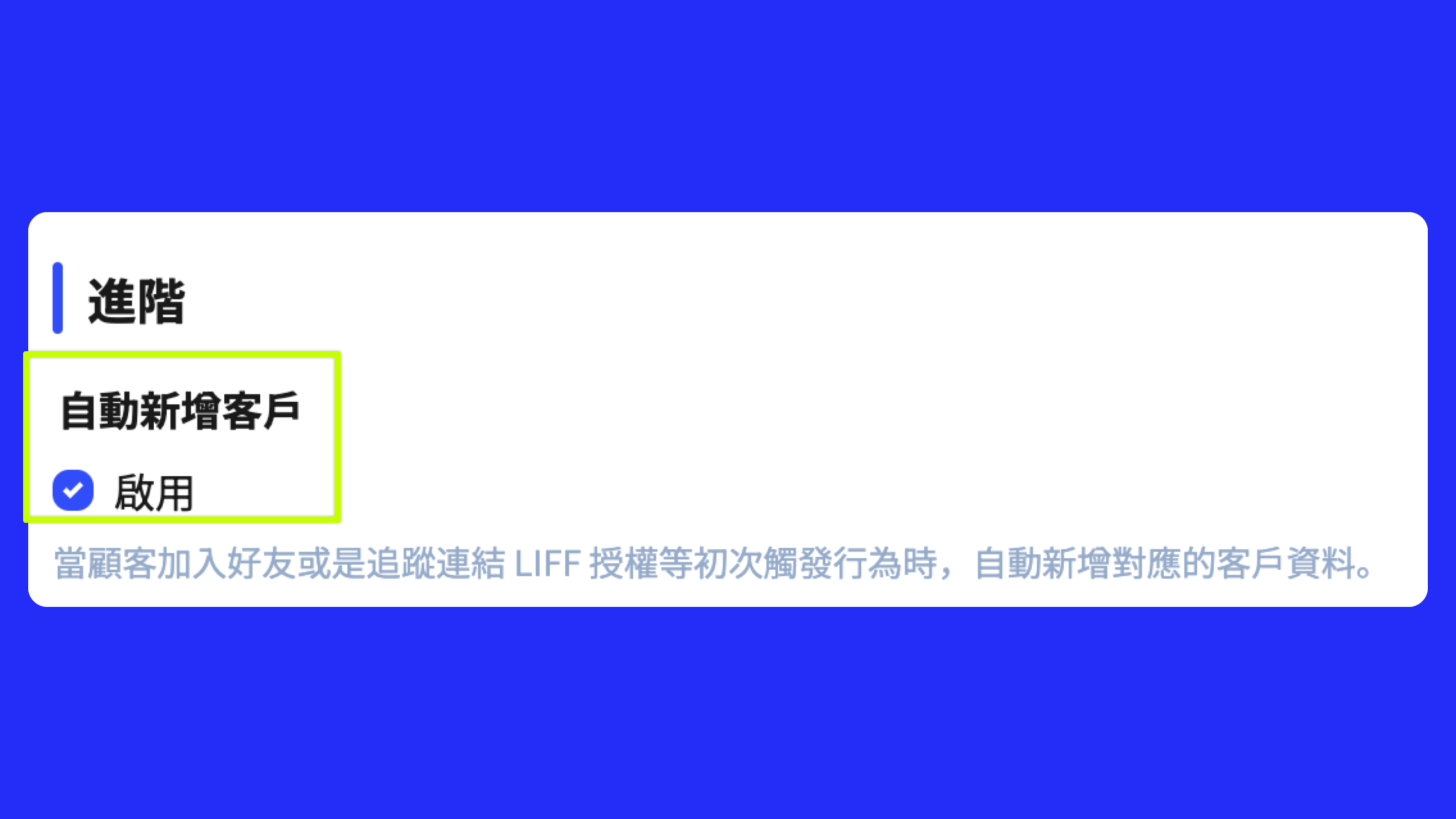
2. Enable **“Auto-add customers”**.
3. Make sure that customers who click through the tracking links have their tags correctly saved to the customer profile.
{% hint style="success" %}
### Flexible applications of auto-add customers
For **“Auto-add customers”**it actually doesn't need to be enabled in every scenario.
* **When enabled**It is suitable for scenarios where you want to include all visitors who come through tracking links in the customer list, making subsequent tag-based segmentation and marketing tracking easier.
* **When not enabled**You can then only carry out conversations and segmentation for customers who already exist in the list, avoiding excessive list growth or the inclusion of non-target audiences.
Therefore, it is recommended to decide based on your own **business process and list management strategy** to determine:
* Do you want to “collect” as many customers as possible, or “manage” your existing customers more precisely?
* Which matters more to your business: list quantity or list quality?
This design provides flexibility, allowing brands to decide whether to enable the feature based on needs at different stages.
{% endhint %}
### Step 3: Set up “conditional logic” in the conversation script
1. Open the conversation script editor.
2. Insert **“Condition - Match Customer Tags”** node.
3. Set different script flows based on different tags (e.g., Source A → Action A, Source B → Action B).
{% hint style="success" %}
### Advanced tip: Use more than just tags for segmentation
Of course, besides **tags** , you can also use other **customer profile fields** or **conversation conditions** to make judgments, further creating a more refined segmented experience.
In this way, the brand can not only segment by entry source, but also further **combine CRM data** and **interaction records**to deliver a more personalized customer experience.
{% endhint %}
### Step 4: Set up the rich menu
1. After “conditional logic”, add **“Action - Set Rich Menu”**.
2. to map different rich menus to each source tag.
* Source A customers → Display Rich Menu A
* Source B customers → Display Rich Menu B
## Practical scenario example: e-commerce anniversary sale segmentation marketing
An e-commerce brand is holding an “anniversary sale” event. The brand wants all customers to join the same LINE Official Account (for centralized management), but different promotion channels have different needs:
* **Facebook ads**: Mainly targeting new customers, hoping they will see the “New Customer Exclusive Offers Menu.”
* **Member EDM**: Sent to existing members, hoping they will see the “Member Bonus Rewards Menu.”
* **Official website banner**: Placed on the homepage to attract customers browsing the website, hoping to direct them to the “Popular Products Quick Access Menu.”
If everyone comes in and sees the same rich menu, differentiated marketing cannot be achieved:
* New customers may get confused by member benefits, reducing conversion.
* Existing members will think the “new customer discount” has no value.
* Customers coming from the website still have to click a few extra steps to find the product entry they want, resulting in a poor experience.
Through the above process, you can achieve:
* **Ad segmentation**Customers who click through different ads see the corresponding campaign information.
* **Event traffic driving**Customers brought in from the event page automatically see the event-exclusive menu.
* **Member tiering**Automatically provide VIP / new customer exclusive functions based on different source tags.